Wondering how to get traffic from Facebook without paying through the nose?
You’re not alone.
If you’ve been sharing content on Facebook with the aim of driving traffic to your website, you’ve probably noticed that you’re not getting the results you want.
That’s because organic reach – connecting with fans without paying – is declining. And if people don’t see your content on Facebook, then that content can’t drive traffic back to your site.
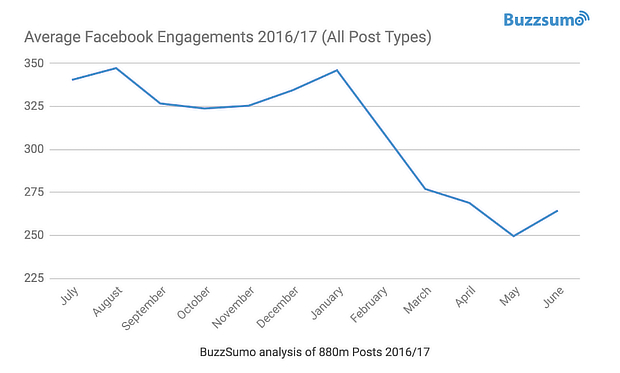
Buzzsumo’s research into Facebook traffic stats shows that in the last year alone, average engagement for brands and publishers fell by 20%. That follows bigger declines in previous years.
Facebook’s experiment with excluding non-sponsored page content from the main newsfeed is likely to make the problem more acute.
What does this mean?
Many businesses find that if they want their own fans to see their own content they need to buy Facebook traffic with social advertising.
The trouble is, that can soon add up, and not every business has a huge marketing budget.
But what if you could get traffic from Facebook without spending a dime?
It’s still possible – IF you know the right strategies.
That’s why we’ve put together this guide. We’ve listed some key strategies that’ll show you how to get traffic from Facebook for free – and we’ll walk you through each strategy, step by step.
Of course, you’ll need a Facebook page to implement them, so if you haven’t got one yet, follow the instructions in Facebook’s own guide.
Here’s a handy list of all the strategies for easy reference:
- Add Links to Your Site
- Give Your Audience What They Want
- Get Expert Tips on Optimizing Page Performance
- Find High Performing Content with Buzzsumo
- Create a Facebook Like Popup
- Use Interactive Content
- Use Live Video
- Add a CTA to Your Facebook Posts
- Promote Your Page with an Inline Campaign
- Optimize Your Facebook Updates
- Improve Facebook Post Targeting
- Keep Sharing Evergreen Content
- Share Selectively on Your Personal Profile
- Turn Likers into Fans
- Run Promos With Other Pages
Ready? Let’s get started….
1. Add Links to Your Site
Let’s start with a tip that’s a no-brainer when thinking about how to get traffic from Facebook: link to your site.
If that sounds too simple, hear us out…
Your Facebook page has an About tab that lets you include a website link in the appropriate field, but there are a couple of other linking opportunities some people miss.
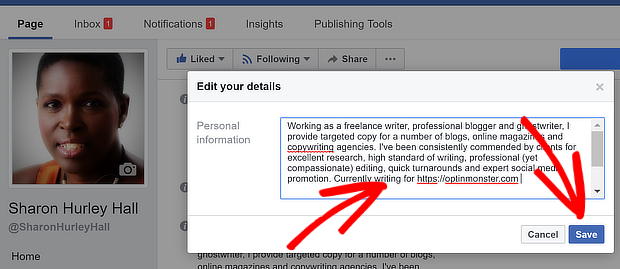
For example, you can include links in the Biography and Personal Informationsections. This is a good place to highlight a piece of content you’re proud of, showcase your special offer, or link to your landing page.
To edit the About tab, log into Facebook and go to your page, then click on the tab (this works if you have edit access to the page). As you scroll over each section, the Edit link will come up.
Click it to enter the editing field and edit your text. To add a URL, just type it out. When you’re done, press Save.
The link is now live.
How to Use Page Milestones to Drive Traffic
You can also create links in page milestones.
Facebook Milestones are significant events in the development of your business, which you can feature on your page.
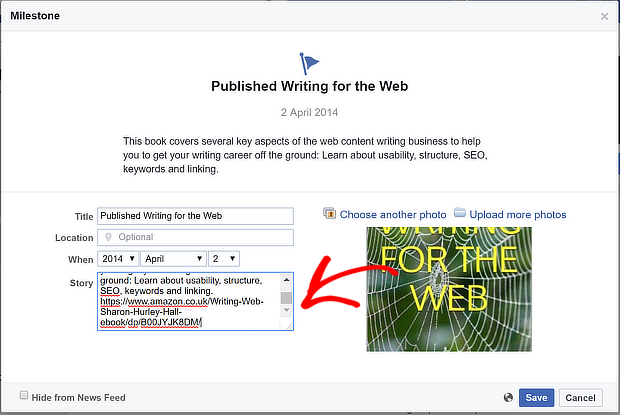
To create a page milestone, click on the three dots just below your cover image, and scroll down to Create Milestone. A box will pop up.
Add a title, date, description (Facebook calls this a “story”), and image for your milestone. You can include a link in your story, as we’ve done in the example below.
Hit Save. Now, when people click on your About tab, they’ll see your milestone, complete with the link.
This is a good way to highlight important content or events, and send people to your site for more information.
And don’t worry; milestones aren’t permanent. If you want to change what you’re promoting, you can always edit or delete your milestone.
2. Give Your Audience What They Want
If you’re going to use Facebook to drive traffic for free, you’ll need to understand how your audience behaves so you can deliver what they want. Facebook Insights provides data on the performance of your page. We’re going to focus on two sections that are particularly useful for traffic building.
How to Find the Content That’s Working
First, you’ll want to understand which content your audience responds best to. That will help you decide what kind of content to create and share, maximizing your chances to get traffic from Facebook.
To find this information, navigate to Insights from the main Facebook page.
Scroll past the overview charts, and look at Your 5 Most Recent Posts. Click on See All Posts to see reach and engagement for all your posts.
This will tell you how many people saw your posts and how many reacted, clicked, commented or shared.
Pay attention to post clicks, as this will tell you how many people are following links back to your site, and which posts successfully achieve this.
Factors that affect clicks might include:
- Post topic
- Length of your description
- Content type (image, video, blog post, etc.)
- Day of the week
- Time of day
Try putting together a basic spreadsheet to list your most-clicked posts and the details listed above. You might be surprised at what you find!
Once you identify what your top-performing posts have in common, you’ll know what works best to get your audience clicking.
How to Work Out When to Share for Maximum Traffic
One of the secrets of success with social media content is sharing it at the right time. There’s a lot of research around on the best time to post on Facebook. According to Hubspot, Thursday to Sunday at 9am, 1pm and 3pm are the best times.
Of course, that doesn’t mean those are the right time for your fans. To get maximum traffic and engagement, you’ll need to post when your actual fans are online.
You can find this information easily on Facebook. Go to Insights » Posts » When Your Fans are Online. You’ll see the days and times your fans are most active. Make a note of these, then use this information to schedule your Facebook posts for those exact times.
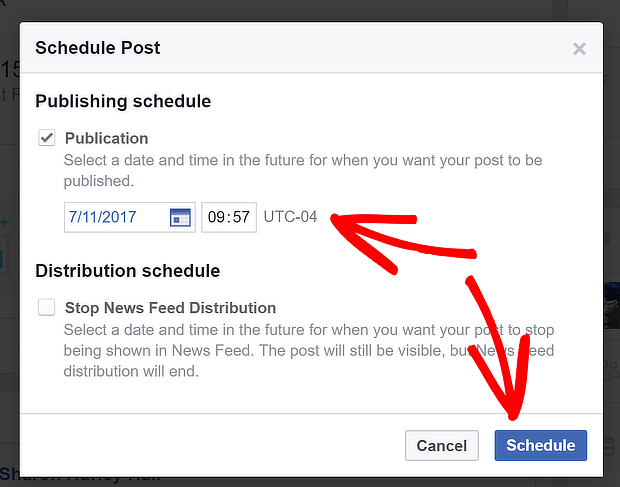
To do this, go to your page and create your post as usual. Then, click the arrow next to the Publish button. Click on Schedule to pop up the scheduling box.
Set the date and time when your content should appear. Click Schedule to put it into the publishing queue.
3. Get Expert Tips on Optimizing Page Performance
Wouldn’t it be great to learn how to get traffic from Facebook by optimizing your page? That’s exactly what Likealyzer offers.
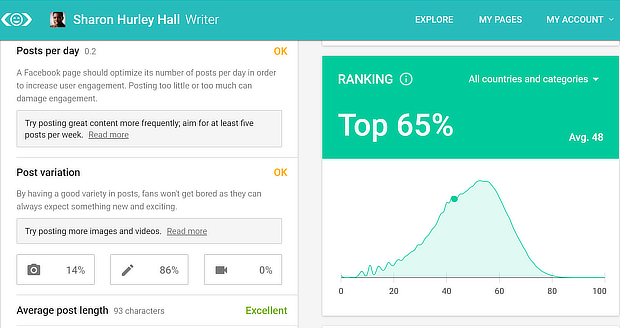
While Facebook provides tips on improving page performance, these can often get lost in the wash of other notifications. Likealyzer analyzes your Facebook page and provides concrete recommendations for improvement that’ll make your Facebook content more visible, and therefore drive more traffic. Here’s how it works.
There are two ways to use Likealyzer. First, you can search for a page using the onscreen search box.
This’ll give you a brief overview, but recommendations are limited.
A better option is to login with Facebook, and let Likealyzer find your page. After a short while, you’ll see a report covering the front page, about page, activity, response and engagement.
You’ll be able to figure out:
- How your Facebook page compares with others in the niche
- What the mix of content is (presented in a much more user-friendly way than Facebook itself)
- What’s working well and what needs improvement
The beauty of Likealyzer is the simple recommendations for making your Facebook page even better. Not only will you learn how to drive traffic to your Facebook page, but how you can get more engagement on Facebook and traffic to your site from that page.
4. Find High Performing Content with Buzzsumo
It’s pretty obvious that content that gets widely shared on Facebook will attract more web traffic. So how can you find out what Facebook users like so you can use that information to tweak your own content strategy and get better content marketing ROI?
Buzzsumo is the perfect tool to help with this. Since it collects and tracks social sharing information, it’s a great way to figure out what Facebook audiences love.
How to Find the Most Shared Content with Buzzsumo
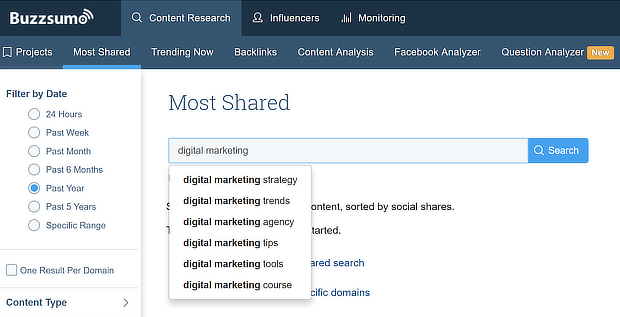
To get the most from Buzzsumo, create a free account. Once you’re logged in, click on Content Research » Most Shared, then enter your topic. We’re using “digital marketing”.
Buzzsumo will suggest related topics as you type. Choose one then press Search.
Use the filters on the left to select types of content and time frames. If you’re not happy with the results, you can click a link to search content only with your search phrase in the title.
By default, the results list is sorted by Total Engagements, but you can click the Facebook Engagements link to see which content is most popular on Facebook.
Use this as a starting point for generating your own ideas. For example, many of the content pieces on this list are about marketing skills and trends, which suggests that if you create or share similar content, it will do well on Facebook and send traffic your way.
How to Use Buzzsumo’s Facebook Analyzer
You can also use Buzzsumo’s Facebook Analyzer for more detail on Facebook content performance. To use it, click on Content Research » Facebook Analyzer, then type in your topic. We chose “email marketing”.
We also ticked the Search Headline Only menu item to avoid getting results for content that wasn’t mostly about our topic.
The results appear on the same page and you can sort them by likes, comments and shares, depending on which metric is most important to you. We’ve sorted our results by shares, because shares can result in more traffic.
Click on the Analysis tab to get data on the best post type for your topic, the most popular post length, and the best day and time to post.
Armed with this information, you can create Facebook updates that send more traffic back to your site.
If you want to get more shares and more traffic, you’ll need a bigger Facebook audience. And one of the best ways to grow your Facebook audience is to ask the people who are already visiting your site to like your page.
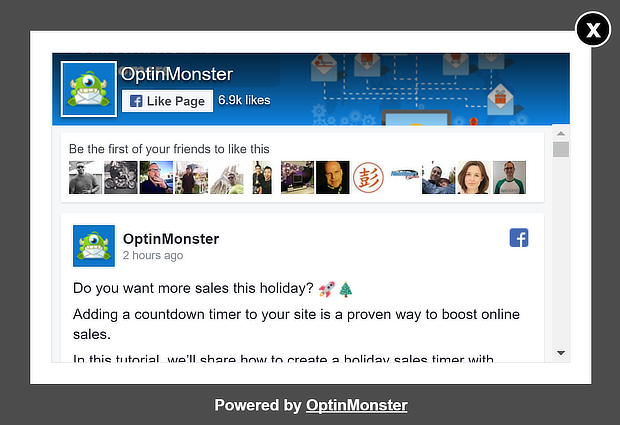
OptinMonster can help you convert some of your website visitors into Facebook fans. That’s because it lets you create a well-designed popup that won’t annoy your visitors, and will appear at just the right time to get them to take action.
With OptinMonster, you can:
- Use Exit-Intent technology to show a “like us on Facebook” popup just before people leave your site.
- Highlight your Facebook page to every visitor who lands on your site as part of a fullscreen welcome mat that slides out of the way to showcase your content.
- Target the visitors most likely to want to follow you on Facebook with page-level targeting.
You can even ask your new email subscribers to like your Facebook page with one of OptinMonster’s success themes.
6. Use Interactive Content
When it comes to driving engagement on Facebook, you just can’t beat interactive content. Research from the Content Marketing Institute shows that quizzes and contests are two of the most effective tools used to raise awareness about a company.
Both types can also be used to help drive free traffic from Facebook.
How to Drive Traffic with a Facebook Contest
If you want to run a Facebook contest, you’ll need to make sure it complies with the guidelines for promotions. In particular, you’ll need to:
- Make it clear that Facebook isn’t in anyway responsible for the contest.
- Avoid asking people to share on their timelines or tag friends to gain entries.
The good news is that you don’t need special apps or complicated software to run a Facebook contest. One of the simplest ways to run a Facebook contest is to ask people to like your page or comment on a post to gain entry. This will help to build your audience, which is part of increasing traffic. And it helps to offer a prize that will really interest your Facebook fans.
Alternatively, you can run a contest on your blog, and encourage people to share it on Facebook and like your page for entries. Many people use software like Rafflecopter to do this, as it includes a free plan.
Using contests really works to boost engagement, which can send more people to your website. PostPlanner runs one Facebook contest a month, and has seen an increase in page exposure, engagement, and leads as a result.
How to Drive Traffic with a Facebook Quiz
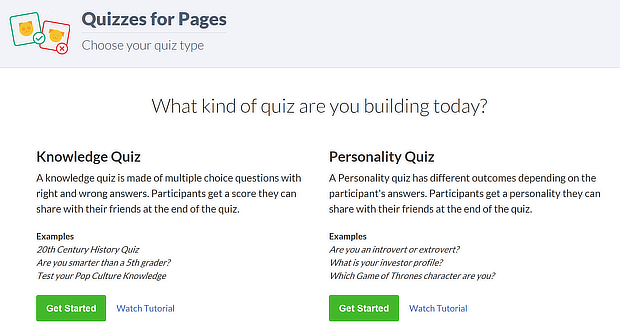
You can also use Facebook quizzes and polls as traffic drivers. Facebook has a quizzes and polls app for pages that lets you quickly create this interactive content.
However, a better option when thinking about how to get traffic from Facebook is to use an external app. As
Heyo explains, if you embed a quiz on your own site and encourage people to share it on Facebook, everyone who wants to complete the quiz has to come back to your site. Heyo calls this a closed loop system.
Not only did the results link back to site content, but 25% of those who completed the quiz left their emails with the company.
7. Use Live Video
There’s no doubt about it: video marketing drives brand awareness, attracts leads, and makes sales. And the latest trend in video marketing is live video.
How does this help you get traffic from Facebook? Think about it. When you use Facebook Live, not only can you attract a ton of eyeballs, but you can also include a verbal call to action (CTA) to visit your site if you’ve got a lead magnet or other resource to offer.
Facebook Live has grown exponentially – and that’s not hype. According to MediaKix, since its introduction:
- Searches for Facebook livestreams have more than tripled.
- Facebook Live videos get 10x the number of comments.
- 20% of all Facebook videos are live.
How to Get Started with Facebook Live
According to
Facebook, it’s pretty simple to get started with Facebook Live:
Here’s how you do it from the Facebook page manager app:
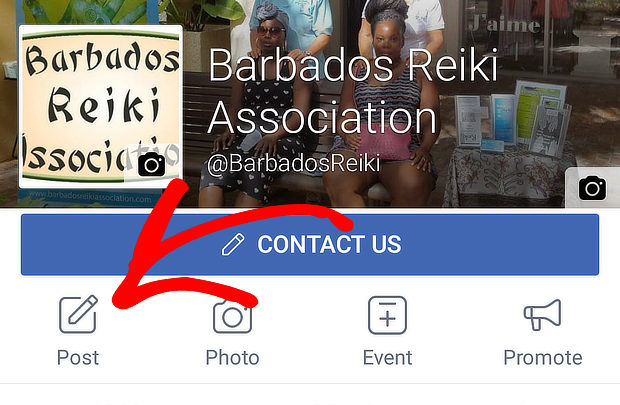
- Choose Post when in the Facebook app.
- Look for “What’s on Your Mind?” at the start of your news feed, then select Go Live from the menu below.
Create a brief description.
Start broadcasting.
Here’s how you do it from the desktop:
- Look for “Write something” at the start of your news feed.
- Just below, select Start a Live Video. Choose Go Live from the dropdown menu.
- Create a brief description.
- Choose your target audience.
- Press the Go Live button to start broadcasting.
Here are a few pro tips from the OptinMonster team:
- If you invite other people to join the broadcast, your video will reach more people, because their followers will also be notified.
- Don’t get to the core of your topic immediately. It can take a couple of minutes for Facebook to notify everyone.
- Promote your site in the video comments at intervals during the broadcast.
Once the video’s finished, it will appear in the newsfeed for your page, so it can continue driving traffic.
You can also use a video clip to enhance your Facebook cover, though you’ll have to shorten it to comply with Facebook’s guidelines.
8. Add a CTA to Your Facebook Posts
It’s worth repeating that one of the best ways to get Facebook traffic for free is to ask people who’re already engaged with your Facebook content.
You can do this by adding more calls to action (CTAs) throughout your page and content.
For example, you can:
- Whenever you share content, consider asking viewers to like your page or visit your site.
- Include a call to action on any image you share.
- Add a call to action to your cover image.
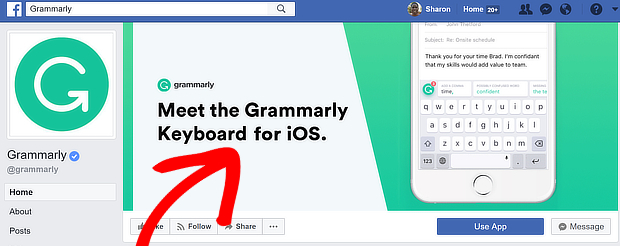
Here’s an example from Grammarly. There’s a call to action on their cover image to learn about a new feature.
When you click on the image, there’s another call to action to download the app from the app store.
9. Promote Your Page with an Inline Campaign
Another way grow your Facebook audience is to use OptinMonster create an inline campaign at the end of each post, inviting people to like your Facebook page. The advantage of using an inline campaign is that the people who see it have already read your content and are therefore interested in what you have to offer.
Here’s how you create an inline campaign with OptinMonster. To add a Facebook page box, follow the instructions we shared earlier for creating a “Like Us on Facebook” popup, and use the Inline campaign type with the Canvas theme.
10. Optimize Your Facebook Updates
Want to make your content more shareable to get more traffic from Facebook? CoSchedule’s Social Message Optimizer is a great tool to help you do that. It’s free, though you’ll have to opt in to use it.
To use the tool, enter your message in the onscreen box, and press Score My Message. On the next page, you’ll see the score.
We tested it with a link to our guide to running an email marketing campaign. It scored a 62, but we thought we could do better.
Scroll down to the overview to see scores for message type, character count, hashtags, sentiment and emoji.
Then scroll further down to see recommendations for each of those sections.
We followed the recommendations, making minor tweaks each time, till we improved the score to a 91.
That message is now likely to do better on Facebook, resulting in more traffic back to the site.
11. Improve Facebook Post Targeting
Here’s a good tip: Facebook ad targeting isn’t just for running ads. You can use it effectively to promote blog content to those who will be most interested. The secret is to create a custom audience for your blog promotion. Here’s how you can use the same technique:
Go to your page, and click on the box that says Write something.
When it pops up, enter your status update, then click on the target in the post creation window. This allows you to choose an audience for the post.
Type a topic into the interest window. Facebook will make suggestions, and will also show you audience figures for each topic.
For our example, since we’re promoting a post about blogging, we want to share it with people interested in marketing.
You can also set Audience Restrictions, such as age, gender, location and more.
If you’re using the Facebook pixel, you can also customize audiences even further, so you can avoid showing content to people who’ve already seen it.
Save your selections, then press Publish.
Since your content is more targeted, you should get a boost in engagement, resulting in more free traffic from Facebook.
12. Keep Sharing Evergreen Content
Creating evergreen content is an essential part of any content strategy, but if you’re only sharing the content once, you’re wasting its value.
One tool that helps you share evergreen content without being repetitive is Missinglettr. Sign up for a free account, add your blog and up to 2 social media profiles, and watch the magic happen the next time you publish a blog post.
When you do, Missinglettr automatically creates a campaign to share that post 9 times throughout the year, starting with the publication date, and ending one year later. It pulls text and images from the post so you have plenty of options for customizing your updates.
To get started, click on Review Campaign, then look at the hashtags. If you’re posting to Facebook, you’ll probably want to get rid of these altogether, because as we saw in the CoSchedule example above, our shared content scored higher without them.
Next, click on OK, let’s review content to see the updates Missinglettr has created. There’ll be an overview at the top showing how many pieces of content of what type have been created.
Use the onscreen arrows to create different combinations. You can also edit the text for each update. You can approve each update manually, or make your changes and press Approve All.
Finally, set a start date for the campaign, and make it live.
That means these updates will drive traffic back to your site all year round.
13. Share Selectively on Your Personal Profile
If you’re like most people, you might have friends who haven’t liked your page. While you want to keep your personal profile personal, there’s nothing wrong with sharing your best content from time to time.
We often see business owners do both, so they share with two different audiences. While you don’t want to bombard your friends and cause a flurry of unfriending, it’s worth using this strategy selectively to build traffic. After all, if your friends love your content, they’ll be happy to share with their networks.
14. Turn Likers into Fans
You know another missed Facebook traffic-building opportunity? People who have interacted with your content but haven’t liked your page.
Let’s face it; if they already like what they see, liking your page isn’t a big step. Sometimes all you have to do is ask.
Here’s where you find that information.
Go to the bottom of any post and see where the reactions to the post are listed.
Click on the names and you’ll see a list of everyone who’s reacted to the post. Anyone who doesn’t already like your page will have an Invite link next to their name. Click the Invite link to ask them to like your page.
Over time, this will increase your audience and traffic as more people take this offer.
Partnerships are an established business growth tool, so why not take that technique to Facebook.
You can get more traffic by finding a page in a complementary niche with a similar audience. Think about what other products and services your audience might find useful, that don’t directly compete with what you have to offer.
Then, start by promoting their content. Once you’re on their radar, you can approach them to ask for a partnership in promoting each other’s content.
With this strategy, both pages can attract more traffic.
That’s it! Put these strategies into action, and you’ll soon see more visitors coming to your site from Facebook. And if you’re wondering how to get traffic from Facebook using paid ads, here’s how you can optimize your Facebook ads.
Finally, don’t forget to follow us on
Twitter and
Facebook for more in-depth guides.